How to Use a Digital Planner in GoodNotes: A Simple Beginner's Guide
How to import a digital planner PDF into GoodNotes, use clickable tabs, duplicate pages and write with a stylus: a step-by-step guide for beginners.
Published on November 11, 2026 · 5 min read

You just downloaded a digital planner and you're not quite sure what to do with it? Here's the short version: import the PDF into GoodNotes (or another note-taking app that opens PDFs), tap the tabs to jump between sections, and write directly on the pages with a stylus or your finger. Everything else is a handful of small tricks that make planning on a tablet feel easy. This guide walks you through it, step by step, even if you've never planned on a screen before.
What is a digital planner?
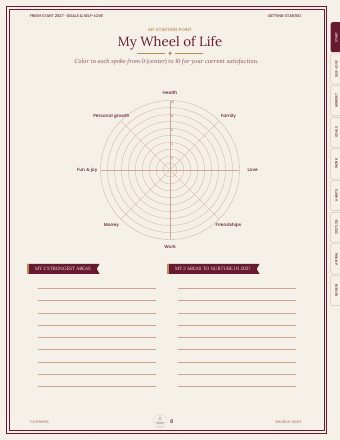
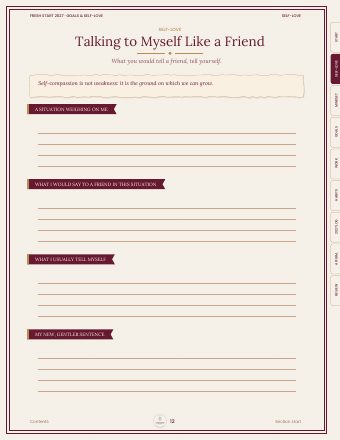
A digital planner is a PDF file designed to be filled in on a tablet. It looks like a paper planner, with monthly, weekly and daily pages, lists and reflection pages. The difference is that it contains hyperlinks. When you tap the "January" or "Goals" tab, you land on the right page instantly, with no flipping through a hundred pages.
It works inside a note-taking app that can open PDFs and let you write on them. GoodNotes is the best known, but Notability, Noteshelf and similar apps work in much the same way.
What you need to get started
- A tablet. An iPad is the most common choice for GoodNotes, but the app is also available on other platforms, depending on the version.
- The GoodNotes app (or another PDF-friendly note app).
- Your planner PDF, saved in your files, your email or your cloud storage.
- A stylus, ideally. You can write with your finger, but a stylus makes handwriting much more precise.
Step 1: Import your planner into GoodNotes
- Download the PDF to your tablet and find it in the Files app (or in your email).
- Open GoodNotes, tap the button to create something new, choose Import, and select your PDF.
- Another way: from the file itself, tap the share icon and choose Open in GoodNotes.
Your planner now appears as a notebook in your library. Give it a clear name, like "Fresh Start 2027," and put it in a folder if you have several.
One tip: keep an untouched copy of the original PDF in your files. If you ever want to start over, just import it again.
Step 2: Use the tabs and hyperlinks
This is what makes a digital planner so handy. According to the GoodNotes help center, links in an imported PDF only work if they already exist in the file, and the way to open them depends on your device:
- On iPad and iPhone, simply tap the linked element (the tab, word or image).
- On Android, Windows or the web version, switch to Read-only Mode, then tap the link.
- In Edit Mode, on any platform, you can also press and hold the link and choose Open Link.
If a link doesn't open, GoodNotes suggests testing the original PDF in another viewer. If it works there but not in GoodNotes, their support team can help.
Step 3: Write, erase, start again
Pick the pen tool in the top toolbar, then a color and thickness. A few habits worth learning early:
- The eraser removes a stroke or an area with no smudge.
- The lasso lets you circle what you wrote to move it, resize it or change its color.
- The highlighter marks a priority without hiding the text.
- The text box lets you type when you'd rather, for a grocery list for example.
- Undo fixes a mistake in one tap.
If you're a perfectionist, this is where digital becomes a real relief: you can fix anything without ruining the page.
The accessories that make the biggest difference
Most beginners hit the same wall: finger writing is clumsy, and a stylus slides too much on smooth glass. Your handwriting looks messy, and it's easy to give up. Two accessories solve that. A compatible stylus lets you write finely while resting your palm on the screen, and a paper-feel screen protector adds a light texture under the tip, closer to pencil on paper.
Before ordering, always check that the stylus and protector match your exact tablet model.
Tips to get the most from your planner
Duplicate a page
Love a reflection page or a daily page? Open the page menu (or the thumbnail view) and choose Duplicate. You can have as many as you need.
Add photos and stickers
The image tool lets you insert a photo, a screenshot or a digital sticker. Perfect for a vision board or a memory page.
Give it a time slot
A planner only helps if you open it. Tie it to a specific moment: Sunday evening to prepare your week, morning coffee for your top three priorities, bedtime for one thing you're thankful for.
Cut the distractions
A tablet is still a screen. Turn on Do Not Disturb or a Focus mode while you write, so notifications don't break your flow.
Back up your work
Depending on your settings, GoodNotes can sync or back up your notebooks. Take a few minutes to make sure backup is turned on. You don't want to lose a year of pages.
What if I prefer paper some days?
No problem. A PDF planner can also be printed: fill in some pages on your tablet and print the ones you'd rather write by hand, like a gratitude page to keep on your nightstand. The format should serve you, not the other way around.
Our journals work in GoodNotes
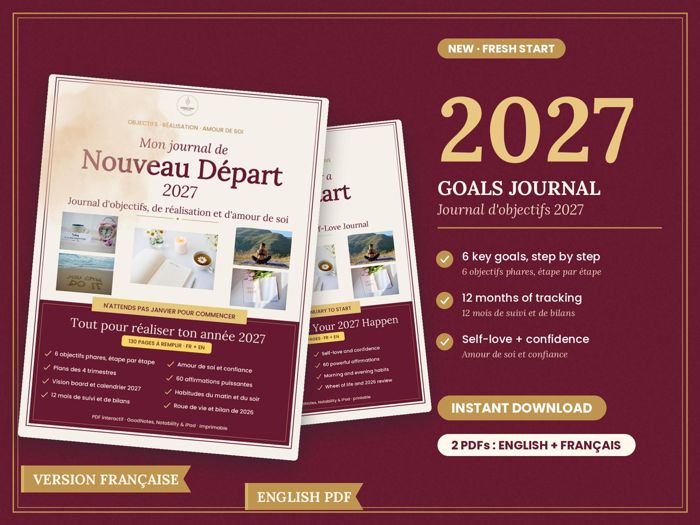
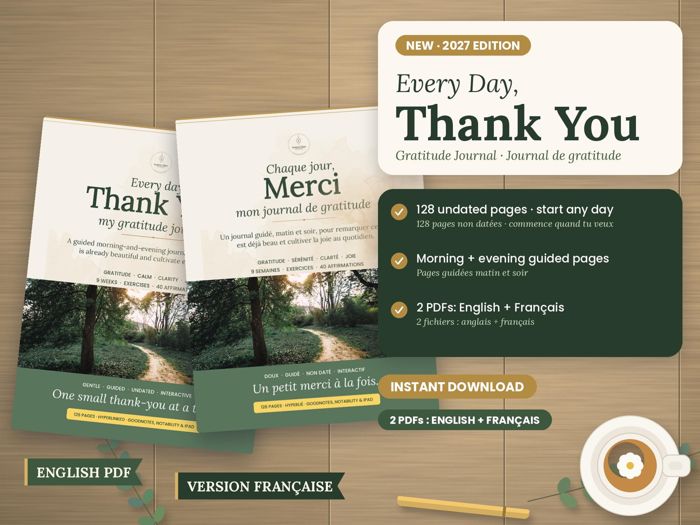
Every Lantern Days journal is a PDF in English and French, with clickable tabs, designed for GoodNotes, Notability and other note apps, or for printing.
To plan your year, one small step at a time:
For a daily gratitude moment, right on your tablet:
Frequently asked questions
Is GoodNotes free?
GoodNotes offers a free option with some limits, as well as paid plans for full use. Offers change over time, so check the current terms in your device's app store.
Why aren't my planner links working?
On iPad, just tap the tab. On Android, Windows or the web, switch to Read-only Mode first. In Edit Mode, press and hold the link and choose "Open Link." If nothing works, test the PDF in another app to see where the problem comes from.
Can I use my digital planner on two devices?
Yes, if your app and account support syncing across devices. Check GoodNotes' sync settings before you start writing on both.
Do I need an Apple Pencil?
No. You can write with your finger or use another stylus compatible with your tablet. A good stylus simply makes writing more precise and more enjoyable.
Sources
- GoodNotes Help Center: Open hyperlinks in imported PDFs
- GoodNotes Help Center: Open Hyperlinks in an Imported PDF
This article is written with the help of artificial intelligence and reviewed by the Lantern Days team. It does not replace advice from a professional. See our Artificial intelligence page.
To go further
Subscribe and get 2 gifts


